Acrobat/Reader -- Print PDF With File Name


Direct purchase using PayPal ($25 only per license)!

Using this script it's possible to print out the file with the file-name embedded in the lower-left corner. One can select to embed the file-name on all the pages of the file, or just on the first page, or on the current page that you're viewing.


(click to enlarge)

Below is the Print dialog with the file-name highlighted in red:

(click to enlarge)
After printing the file (or canceling the Print dialog window), the embedded file-names are gone from the file and it is restored to its original state.

This script can be used both in Adobe Acrobat and in Adobe Reader. In Reader, in versions prior to XI, using the script requires that the file has the rights to add comments to it.

If you have any questions about this tool, contact me directly.

Site Update: New Clients Feedback Page

I've just added a new page where clients can leave general feedback about their experiences purchasing scripts from me, or about our interaction in general. It's available here.

Acrobat -- Copy Page Labels To Pages

Buy Now! ($30 only per license)

This script allows you to easily copy the page labels of a PDF files to the actual pages themselves and use them as a sort of footer (or header) to number the pages. This page labels (the ones that appear in the Pages panel and navigation menu) are more flexible than the built-in option to number pages, and with this script you can easily set their location on the page, as well as font type, size, color, etc.

All you have to do is create a form text field called "PageLabel" at the location you want the text to appear, and give it the appearance properties you desire, and then execute the script and select to which pages it should be applied.

For example: We have our PDF file with the page labels all set (on the left), and a field called "PageLabel" located where we want to copy them to the pages themselves. We click on the "Copy Page Labels To Pages" button under the Tools menu...
(click to enlarge)
We now select to which pages to copy the labels (all of them, in this case):


The script does its job, and then reports how many pages were edited, and offers to flatten them:


At the end of the process we see the new labels on the pages (top-left corner, where the original field was):

(click to enlarge)

If you have any questions about this tool, contact me directly.

Acrobat/Reader - Disable Sign Pane and Signature Bar

Yet Another Update: Adobe just published its own instructions on how to disable the Signature Bar, both for Windows and Mac computers. See: http://helpx.adobe.com/acrobat/kb/disable-echosign-detection.html

Hopefully this is a sign that they'll remove (or at least disable) this feature in future releases... We'll wait and see!

Another Update: For any Mac users willing to disable this feature, check out the discussion between myself and a Mac user in this thread (2nd reply and the comments under it). As stated there, the solution I suggested is not tested by me so I take absolutely no responsibility for trying to implement it.

Update: Adobe revealed that there's a specific registry setting to disable just the Signature bar.
See: http://www.adobe.com/devnet-docs/acrobatetk/tools/ReleaseNotes/11/11.0.03.html#echosign-integration

Many people dislike the newly added "feature" in the latest versions of Acrobat and Reader that shows a green bar at the top of the document when the application thinks that is requires a signature (this seems to be based solely on the content of the document, when it contains the words "sign" or "signature").

Acrobat doing a not-very-good job of detecting when a signature is needed...
(click to enlarge)

Unfortunately, there is no option to disable this feature, which is why I delved into the registry reference and found a workaround. By downloading and executing these FREE .reg files you can completely remove the Sign pane from Acrobat or Reader, taking along with it this new signature detection feature.

The same file after running the .reg fix for Acrobat XI. Notice the Sign button is gone, as well as the green bar at the top.
(click to enlarge)

IMPORTANT: Running these files will change your registry and you do so AT YOUR OWN RISK.

Also, this workaround works only for Windows installation of Acrobat and Reader XI.

The download links are:

Disable Sign Pane (Acrobat XI)

Disable Sign Pane (Reader XI)

Enable Sign Pane (Acrobat XI)

Enable Sign Pane (Reader XI)

As always, I can be contacted directly at try6767@gmail.com, and if you find this tool useful and would like to donate, it's always appreciated!

Acrobat -- Create Skype Phone Links


Direct purchase using PayPal ($50 only per license)!

Your PDF files probably already have links to open web-sites and send emails, but what about adding an even more advanced layer of interactivity for the user? This script will take any telephone numbers that appear in your file and convert them into clickable links that will launch the Skype application (if installed, of course), and automatically bring the telephone number up so the user can immediately call it.

For example, let's take this bank's Contact Us page and run the script on it:


(click to enlarge)

The phone numbers on the page already have a country-code (+44), so we leave that option blank:


The script created 3 links:


We can see them by hovering with the mouse above one of them:


Clicking it immediately launches Skype and prompts us to call this number:

(click to enlarge)

The script even comes with an Action (if you have Acrobat Pro) that allows you to process multiple files easily.

For more information about this tool, you can contact me directly.

Acrobat/Reader -- Silently Print All Open PDF Files


Direct purchase using PayPal ($30 only per license)!

Using this new script you can easily and quickly print all the currently open PDF files in Acrobat or in Reader. The tool adds a new item to the Window menu that will send all the files you currently have open to the default printer.


For more information about this tool, you can contact me directly.

Acrobat -- Change Fields Check Style


Direct purchase using PayPal ($25 only per license)!

Using this handy tool you can easily change the check style of all the radio-buttons or check-boxes in a file with a single click of the mouse:


For more information about this tool, you can contact me directly.

Acrobat -- Create Live Filtered List


Direct purchase using PayPal ($50 only per license)!

Working with very long drop-downs can be a handful, especially since you can't set the size of the drop-down menu that opens. A much easier approach is to use a "live" filter, similar to the Google Auto-Suggest feature, where you start to type the text that you want to look for, and a menu pops-up appears with the relevant options. Up until now this was not possible to do in a PDF, but now it is!

Using this new script you can easily and quickly set up a plain text field to act as the "filter" for a combo- or a list-box field.

For example, let's say you have a list of all 50 states, and you want the user to be able to find their state quickly and easily:

(click to enlarge)


You run the script and select your fields, and the additional options like whether the filter should be case-sensitive (set to false in this case), and whether to show all items if the filter is blank (set to true below):


After doing so, when you enter a letter into the filter text field, the options in the list immediately change to just those starting with the entered text:


As you type more letters, the options reduce even further:


If you wish to see this in action for yourself, the file shown above can be downloaded from here, for free.

For more information about this tool, you can contact me directly.

Acrobat/Reader -- Print With Field Names


Direct purchase using PayPal ($25 only per license)!

Sometimes when working with a complex PDF form you want to have an indication of where each field is located. A printed copy of the form with the name of each field placed next to it can be a useful tool for that purpose, which is exactly what this tool does.

When you click on the "Print With Field Names"-button that this tool adds to Acrobat (or Reader), the file will be printed as usual, but with the names of all of the form fields just above the fields themselves (the names appear in red).

For example, this section of a PDF page:

Will look like this when we print it out:

After printing, the file is returned to its original state.  

Note: To use this tool in Reader, the file must have the right to add new form fields applied to it.

For more information about this tool, you can contact me directly.

Regarding Acrobat XI

As you've probably heard already, Adobe has released the newest version of the Acrobat and Reader family applications, called XI.

As always, I do my best to make sure that all of my scripts are compatible with all (recent) versions of Acrobat and Reader, and unless mentioned otherwise, they are.

However, with this new version Adobe has introduced a major change to the way Action files are saved (they are now XML-based, as opposed to the non-standard format they had before). This means that Actions that were created in previous versions of Acrobat can be used in Acrobat Pro XI, but can't be edited in any way. This will probably cause some issues if you purchase any of my tools that includes Action files.

I am working on creating new versions for all of my Actions that are compatible with this new format, and will add them gradually to my scripts, as soon as they're ready.


If you encounter any problem using one of my scripts in Acrobat (or Reader) XI, please let me know (try6767@gmail.com, as always), and I'll do my best to solve the problem for you.

Acrobat -- Create Dependent Dropdowns


Direct purchase using PayPal ($50 only per license)!

There are many instances where you might want to have dependent dropdowns (or combo-boxes, as they're sometimes called) in your PDF form, to provide the users of the form with a limited set of pre-defined option to choose from. This can be, for example, a set of clients and contact people, or a set of product categories and specific products, or even a list of countries and then cities within each country.

Creating such dependent drop-downs is complex and requires scripting knowledge, but now you can set up such a system with ease. All you have to do is use this script to select the relevant fields and then enter the primary and secondary items. The script will take care of the rest for you!

Here's how it looks like: First of all you select the 2 fields...


If the primary field already contains items, they will automatically be added to the first list.
Then you enter the primary and secondary values, either one by one, or multiple items (which also allows you to copy and paste text from other applications or files). 


Adding a single item to the Primary Data list (click to enlarge)

Adding multiple items to the Primary Data List (click to enlarge)


Adding multiple items to the Secondary List (click to enlarge)


And after you click OK, the values are immediately applied to the selected boxes:


For more information about this tool, you can contact me directly.

Acrobat -- Apply Format to Multiple Text Fields


Direct purchase using PayPal ($60 only per license)!


If you've ever created forms in Acrobat then you've probably encountered the frustrating inability to set multiple fields to have the same Format settings. When you select multiple fields and go to their Properties, the Format tab is simply not there, which means you have to edit each one manually, an exhausting and time-wasting process.

New feature: You can now select to list either all of the fields in the document, or just those on the current page. This is helpful when you have files with large amounts of fields and you only wish to process some of them.
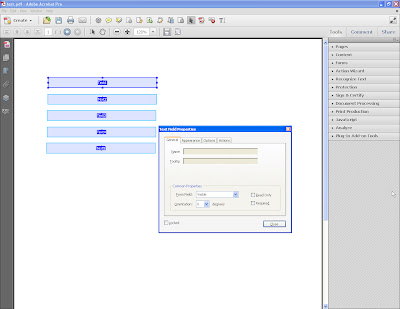

When selecting multiple fields, the Format tab is not available


This annoyance has prompted me to create this new tool which allows you to set the Format settings for multiple fields easily and automatically.

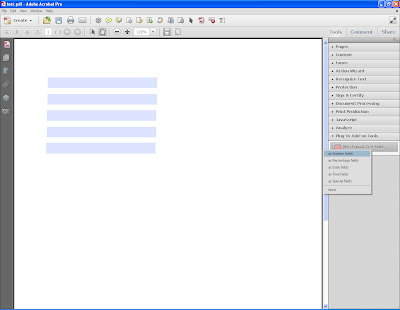
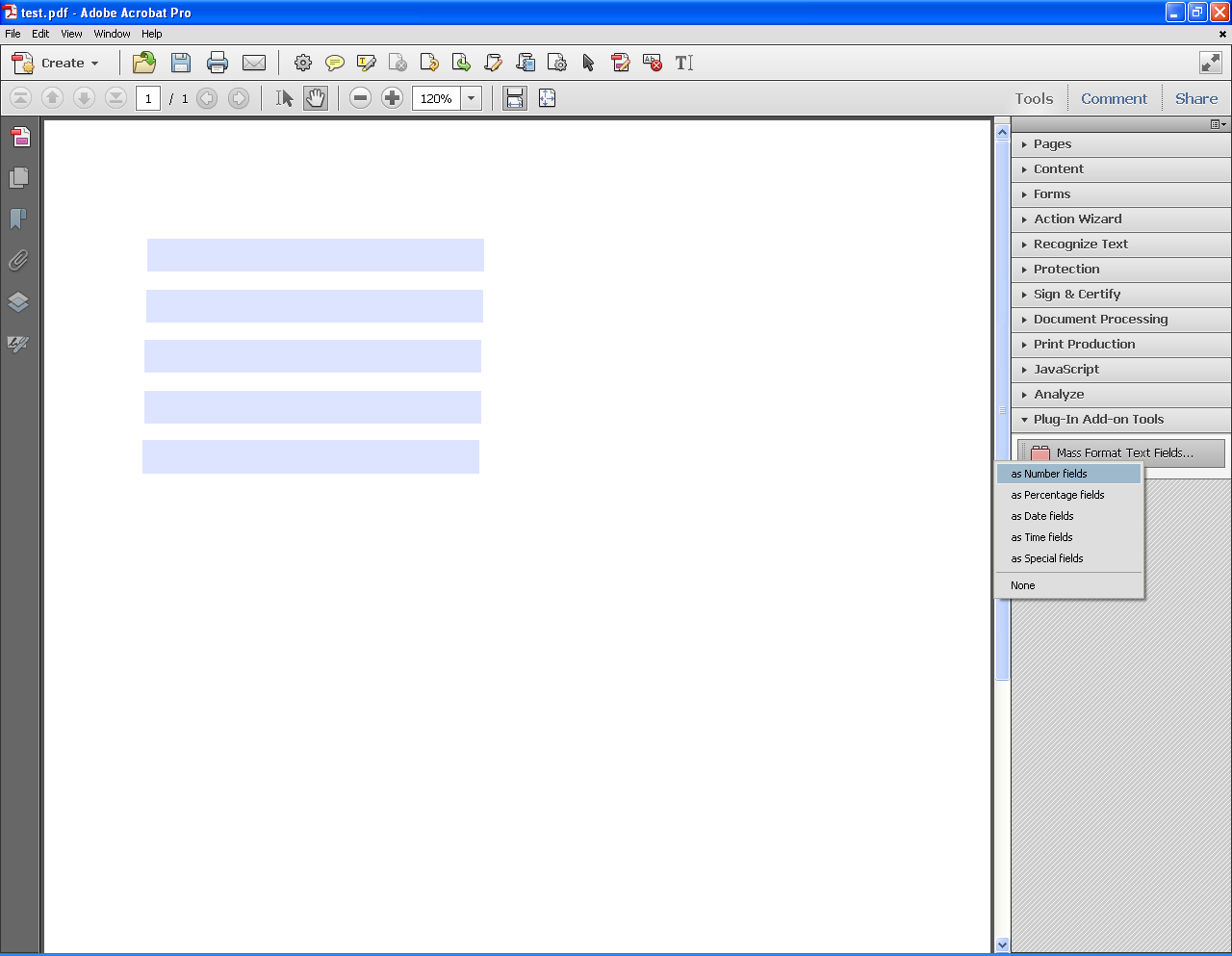
When you first launch the tool you're prompted to select which type of format to apply. The options are:
  • Number
  • Percentage
  • Date
  • Time
  • Special
  • None


(click to enlarge)


After selecting one of these options, you'll be presented with a list of all the text fields in the file. Select the ones you wish to format (you can select multiple fields using the Ctrl and Shift keys), and then press Continue.
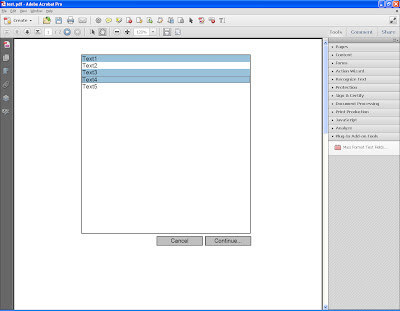

(click to enlarge)


If you didn't select None (which simply removes any current Format settings), you'll now be presented with a window where you can specify the specific options for the selected format, identical to those available in the built-in Format tab.

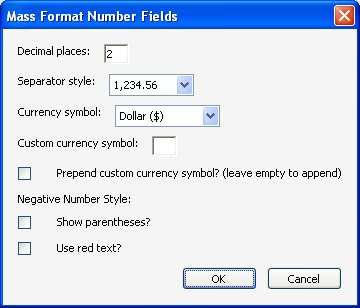
For the Number format you can specify:
  • The number of decimal digits
  • The separator style of the number
  • Whether or not to include a currency symbol, and which one (including the option for a custom symbol, and if that symbols should appear before or after the amount)
  • How to display a negative number


The number format dialog


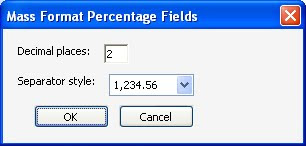
For the Percentage format, you can specify:
  • The number of decimal digits
  • The separator style of the number


The percentage format dialog


For the Date and Time formats you can specify the format that will be used, either from a list or using your own custom format.
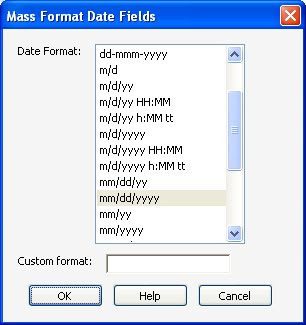

The date format dialog
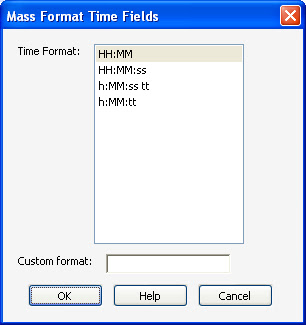
The time format dialog


For the Special format you can either select one of the pre-defined masks, or specify your own.
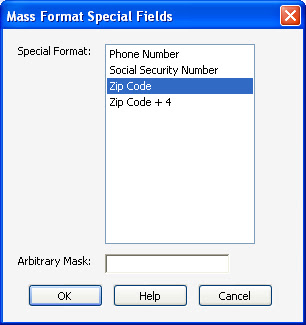

The special format dialog


In this case I've used the Number format and specified 2 decimal digits, a standard separator style ("1,234.56") and the Dollar as the currency symbol to be used.
The result is that the selected fields now have this formatting:
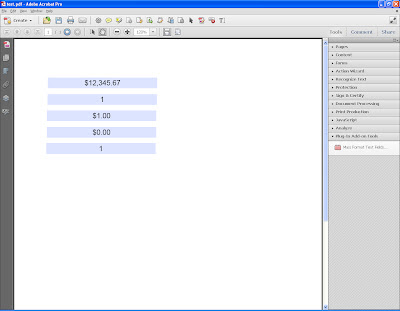

(click to enlarge)


Using this tool can save you hours of tedious and boring work, and will make sure you have a consistent, error-free form.

For more information about this tool you can contact me directly.

Acrobat -- Add Zoom Areas


Direct purchase using PayPal ($40 only)!


If you have important areas in your PDF file that you want for the user to be able to easily zoom in and out to, this is the tool for you.
Using it you can convert standard form field buttons to "zoom areas" that will zoom in when clicked, and return to the original view when clicked again.
You can specify the zoom level to be used, or use the default level of 200%.

To see how these buttons work, download these sample files.
The first one is the page with the 4 buttons. The other two show the same file after running the script on it, once using the default zoom level, and once specifying a zoom level of 500%.

For more information about this tool you can contact me directly.

Acrobat -- Block Forbidden Words in Form Fields


Direct purchase using PayPal ($30 only)!

This script allows you to define a list of "forbidden" words which the users are not allowed to fill in the form fields in your PDF file.
The list can either be imported from a text file, or it can be entered manually.
You can also define what should happen if any of the forbidden words is entered. The options are:

  • Reject the text the user entered in its entirety.
  • Remove the forbidden words and accept the rest of the text.
  • Replace the forbidden words with something else (for example "XXX" or "***"), and accept the new text.
Also, for each of these options you can define an error message to be shown to the user, with the text you specify.

Here's how it looks like when you use the tool:

In the first dialog you make your selections, and enter the list of forbidden words.


When you press OK, the tool applies the required scripts to the selected text field.
If a user then enters text into one of those fields with one (or more) forbidden words, the tool goes into action when the field is exited.


In this case, the error message is shown:


And then the forbidden words are replaced by "XXX":


As can be seen, the tool is case-insensitive and will identify both exact matches ("Fuck" in this case) as well as partial matches ("shitty") to the list of forbidden terms.

For more information about this tool you can contact me directly.