Acrobat/Reader -- Convert Wingdings Characters to Check-Boxes or Radio-Buttons


Direct purchase using PayPal ($40 only per license)!

Update (03/04/2020): Now available is a companion tool that can convert sequences of underscores to text fields! You can find it here.

When creating their forms in Word, many people like to use the Wingdings characters for their form fields, such as radio-buttons and check-boxes. They are easier to move around and control, compared to graphic elements, because they are simply textual symbols.
The problem begins when you convert your file to PDF and want to convert them to PDF form fields. Acrobat does not always identify these symbols as form fields, and when it does, it doesn't always assign them the correct form type: Check-boxes can become text fields and radio-buttons can become check-boxes... Which means you then have to make a lot of manual adjustments to get them working correctly.

This issue can now be easily solved using this new tool I've developed which will identify Wingdings characters and convert them into the correct form fields in your PDF file.
The tool can identify 8 different kinds of check-boxes and 7 different kinds of radio-buttons, as can be seen in this list:

Types of recognized Wingdings (click to enlarge)

So let's say we have a simple form with Wingdings boxes that we want to convert to check-boxes:
The original file
After installing the script we can run it easily via the Tools panel, like so:

Accessing the script in Acrobat
The symbols are recognized and the fields generated. When done, the script reports how many fields were added to the file:


We can now see the generated fields in the file:


And interact with them, just like any other fields:


This tool can even be used in the free Adobe Reader (version XI or higher)!

Also, it will work with files from other applications, like Excel or InDesign, as long as they use the Wingdings font.

For more information about this tool, you can contact me directly.

Acrobat -- Deskew PDF Pages


Direct purchase using PayPal ($60 only per license)!

One of the most common problems with scanned pages is that they are are skewed by a couple degrees, which can be annoying and unpleasant to the viewer. It can also cause problems with processes such as Optical Character Recognition (OCR). Many times these processes attempt to manually correct those scans by rotating them backwards (deskewing them), but that's not always successful or even possible (for example with non-scanned documents). So how to solve this problem?

Well, with this new tool you can easily deskew some, or all, the pages of a PDF file, in either an automatic or a manual process.

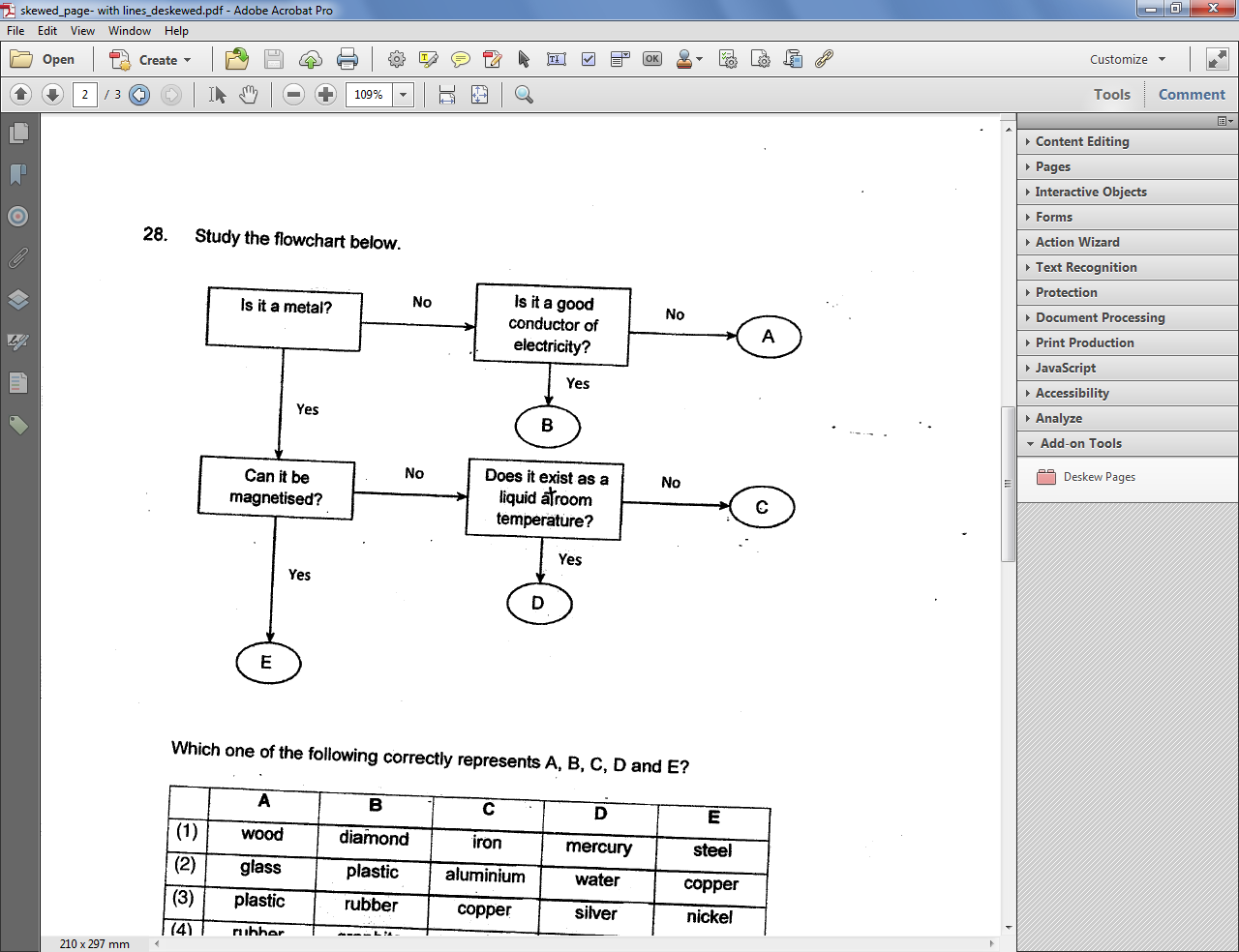
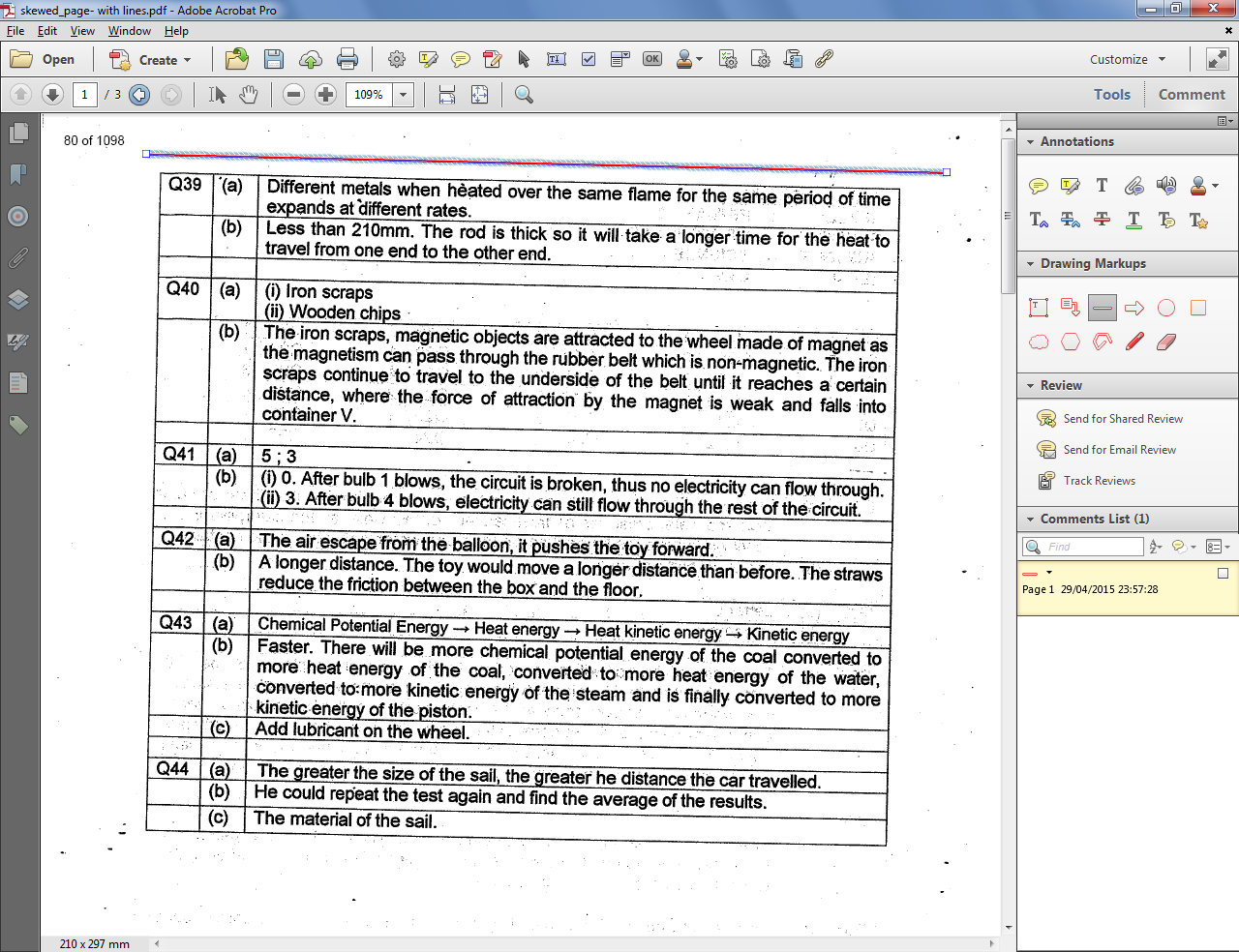
Let's have a look at an example: This is our original file with skewed pages that we want to rotate.
Notice the script is installed and available under Tools - Add-On Tools.

The original first page of the file (click to enlarge)

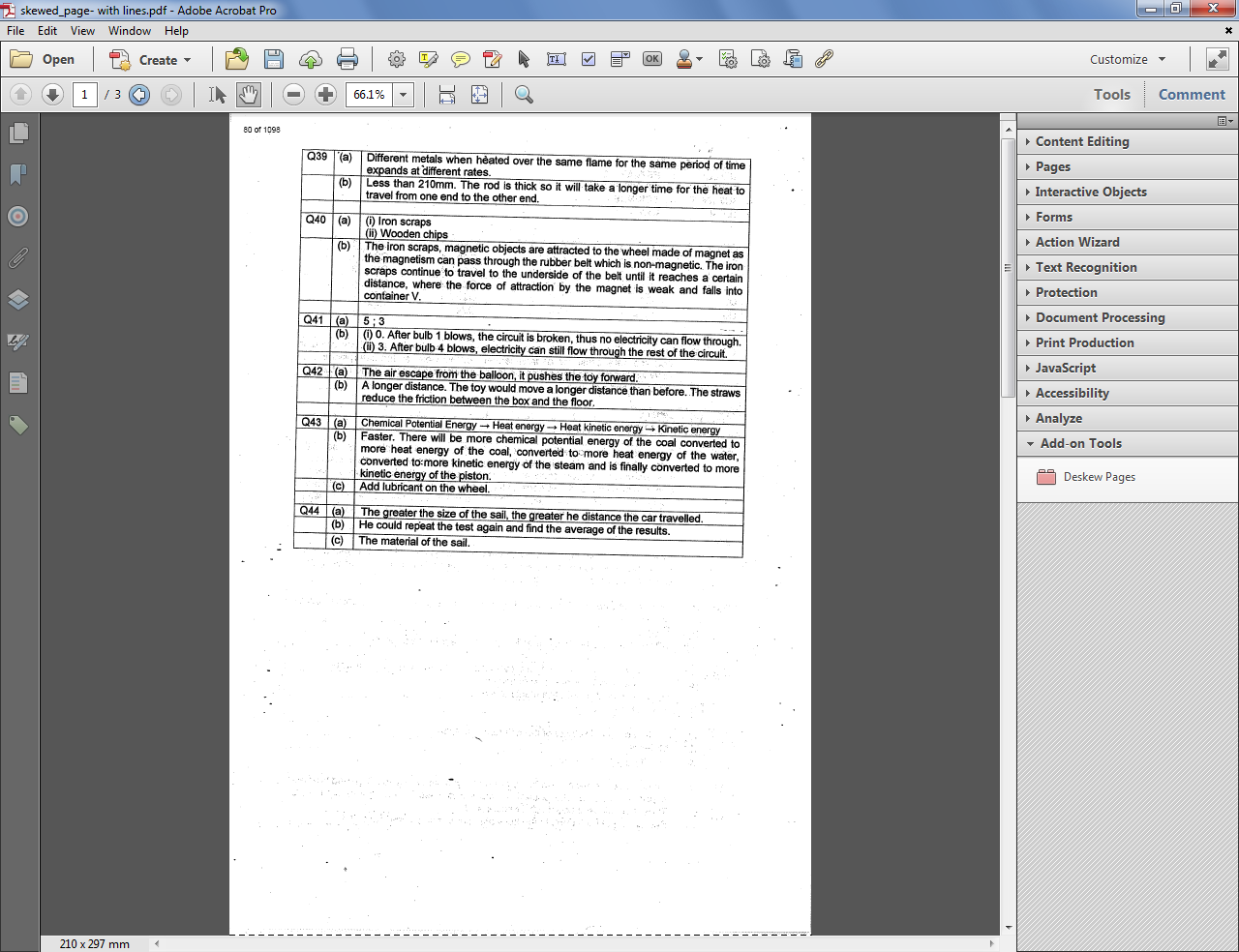
So how do we do it? We use the Line commenting tool to draw a line that represents the angle in which we want to rotate the page. So if there's a table on the page, for example, that line should be parallel to its top border:

The skewed page with the line we added to it
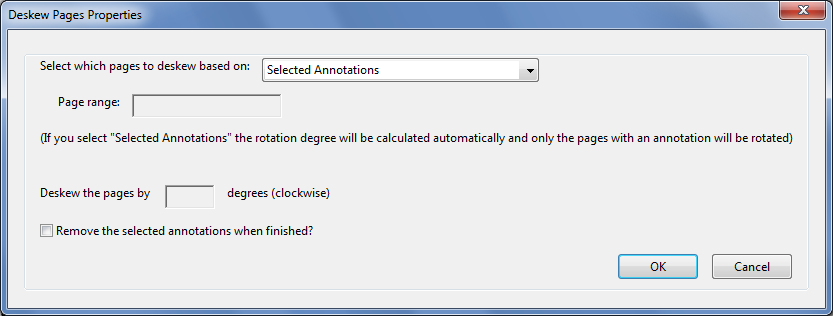
After adding the line we select it (multiple lines on multiple pages can be selected at once in the Comments List panel). We then run the script and in the Properties dialog select to use the "Selected Annotations" option.
If we want we can also select to remove these lines after the pages are processed.


The script's properties dialog
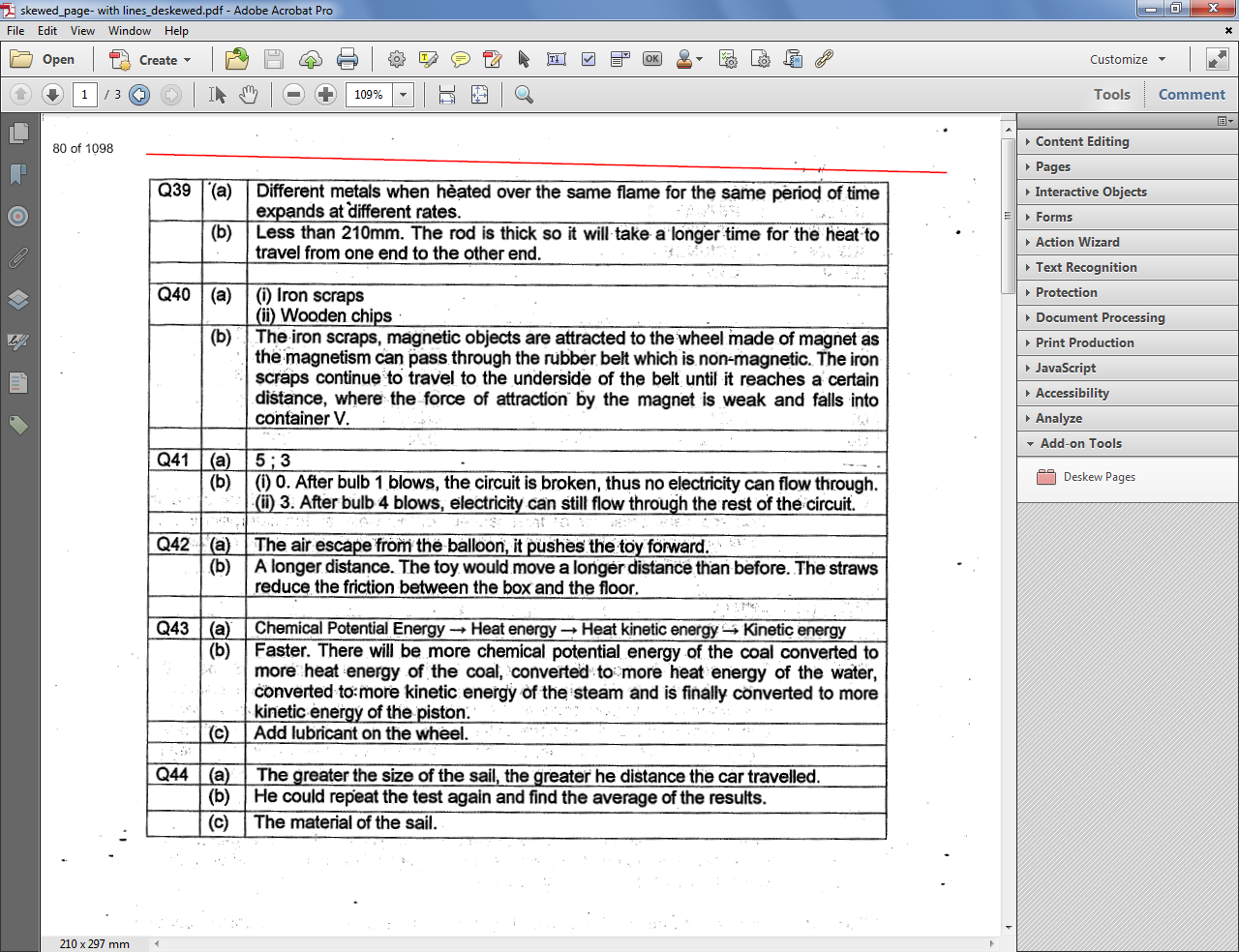
 And the result is...

First page after automatic deskewing
As you can see, the result is pretty good: The page is much straighter now.
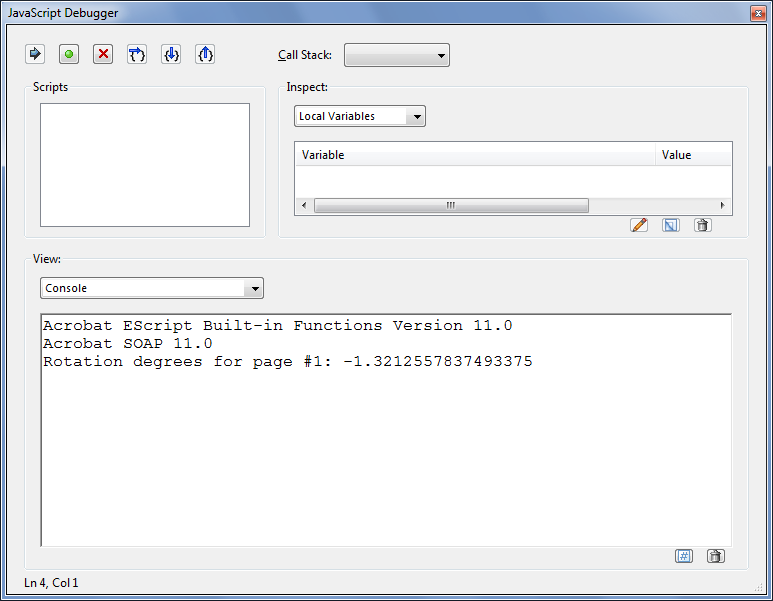
We can find out by how many degrees (clockwise) it was rotated by opening the JS Console (Ctrl+J):

The automatic rotation angle for page #1.
(Although the value is a fraction, in fact the rotation is in whole degrees only)

Now lets say we want to specify ourselves by how many degrees to rotate the page.
We take page #2 of the same document and run the script once more...


The original page #2
 This time in the Properties dialog we select to process the current page only and enter the degrees manually as "-2" (since we want to rotate it counter-clockwise):


And the results look pretty good once again:


We can now process the rest of the pages using the same setting, if we wish.

Important note: This process will NOT affect objects on the page such as form fields, annotations, links, etc. They will all remain in tact.

For more information about this tool, you can contact me directly.
Compatibility with the new Acrobat and Reader DC

Adobe has recently released a new version of Acrobat and Reader (now named "Acrobat Reader"), called "DC" (Document Cloud).
As far as I am aware, and according to all of my tests, all of my scripts are compatible with these new versions, and can be installed and used in them without problems.

If you purchase a script and have problems installing or using it please contact me privately and I'll help you solve the problem as soon as possible.

Acrobat -- Generate Radio Button Groups


Direct purchase using PayPal ($40 only per license)!

Update (30/03/2015): Now available, a free demo version of this tool.
The demo version will create two copies of the original radio buttons, and can only begin from number "1".

Update (28/01/2014): New dialog added and the ability to specify the base number.

The option to duplicate fields in Acrobat is very useful, but not so much when it comes to groups of radio-buttons or check-boxes. It's not possible to generate new groups of these fields, so you have to either duplicate an individual field, and then rename and set the options for all the copies, or manually copy&paste your group (and then rename it as well)...

This is why I've developed this new tool, which will make creating new groups of fields very easy and convenient. No more renaming required. No more changing the options for each group so they work the same. It's an easy and fast process.

Let's say you have a PDF with 10 multiple-choice questions.
All you have to do is create the first 2 groups of radio-buttons for the answers, and then click the Generate Field Groups button that the script adds to Acrobat:

(click to enlarge)


You are then asked to enter the base name of the two groups you've created (which is "Group" in this case), as well as the base number (1 in this case), and the number of new groups to generate (we want 8 new groups):


Click OK, and within seconds, the new groups are added to the file, each one with its own unique name (Group3, Group4, Group5, etc.), but with the same values as those we defined in our original groups (A, B, C and D, in this case), and perfectly aligned to them:

(click to enlarge)

Done and dusted in no-time...

For more information about this tool, you can contact me directly.
Batch Combine All PDF Files In Folders


Direct purchase using PayPal ($100 per license)!

This tool is similar to my Acrobat -- Batch Combine All PDF Files in a Folder script, only it's not a script, it's a more robust stand-alone tool that does the same task but is capable of processing more files quicker and more efficiently.

The tool looks like this:

The applications' GUI (click to enlarge)


If you wish to test the tool before purchasing it, a free demo version is available here.
The demo version is limited to processing up to 3 files in up to 3 folders. The full version has no such limits, of course.


For more information about this tool you can contact me directly.

Reader -- Create Form Fields in Adobe Reader


Direct purchase using PayPal ($40 only per license)!

One of the most frustrating things in Adobe Reader is that you can't add form fields to your files with it. You can fill them in, if they exist, but not create them. You usually need to purchase some expensive application to do that, but not any more!

Using this new tool I've developed one can create form fields even in the free Reader (XI version only!), simply by drawing them using built-in the Square commenting tool and then converting them to real, fillable fields.

It's fast and easy to do. All you need to do is draw the squares where you want the fields to be located, and as their comments enter the desired field name, like so:

The original comments (click to enlarge)
You can even specify some special properties for various field types, such as:
- Default values for Text fields
- Export values for Radio-Buttons and Check-Boxes
- The list-items for Combo-box (Drop-down menus) and List-box fields

After creating the comments you select the ones you want to convert and run the tool from the Extended menu on the right:

Creating text fields I
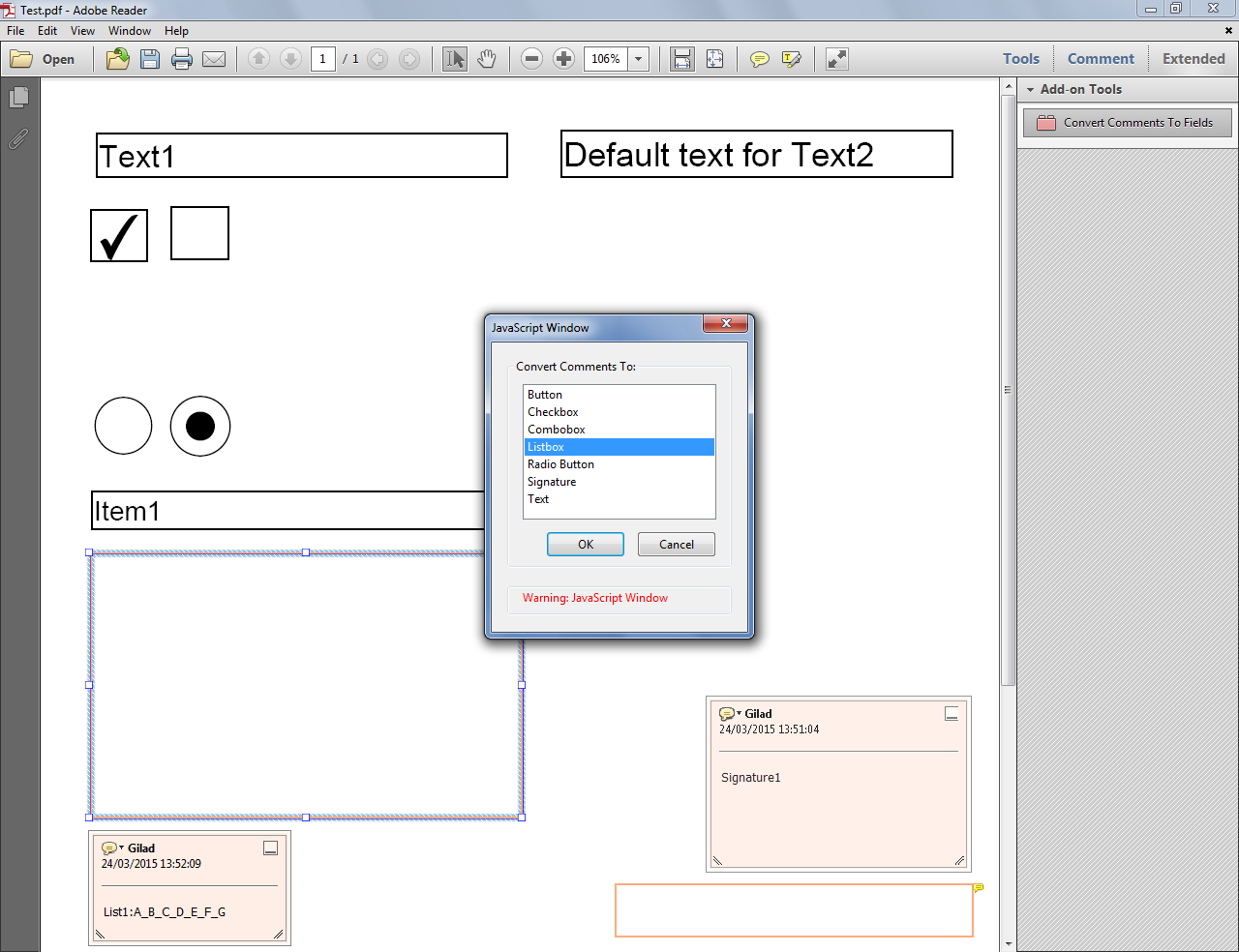
You select which kind of fields they should be from the list:

Creating text fields II
 And voilà... The new fields are created! As you can see the one on the right has a default text, and the one on the left shows the field name of that field.

Creating text fields III
 They are editable, just like any field created elsewhere.

Creating text fields IV
 We can also create check-boxes:

Creating check-boxes I

Creating check-boxes II
Radio-buttons...
Creating radio-buttons I

Creating radio-buttons II
A combo-box field, with items:

Creating a combo-box I
Creating a combo-box II
 A list-box, with items as well:

Creating a list-box I

Creating a list-box II
 And even a real Digital Signature field!

Creating a signature field I

Creating a signature field II
The file can now be saved and distributed, just like any other PDF form!

If you have any questions about this tool, you can contact me directly.
Acrobat/Reader -- Quickly Switch Between Highlighter Colors


Direct purchase using PayPal ($40 only per license)!

Update (19/03/2015): The tool now offers three independent custom colors that you can set, instead of just one.
Also, if you have one or more highlights selected when switching between colors, they will be automatically painted using the selected color.

One of the most annoying things when adding comments to PDF files in Adobe Acrobat or Adobe Reader is having to switch colors of the Highlighter tool. It's a cumbersome process that can really slow you down when you want to quickly review and comment a file.
The problem is there's no option to add an icon for the tool in different colors, it has to be done via the Properties Toolbar. Well, not any more!

Using this new tool I've developed it is now possible to switch between colors with a single click on an icon, making the review process much faster and smoother.

You can select between a set of default colors (I can customize these colors for your specific needs, of course): Yellow, Red, Blue, Green, as well as an option to define a custom color, either in RGB, CMYK or Grayscale.

Here's how it looks like in Acrobat XI Pro:


Here I show how to add the buttons to the toolbar, so the Tools panel can be closed while working:


And here's how it's used in Reader XI:


If you have any questions about this tool, you can contact me directly.
Acrobat -- Create Copies with Unique Codes


Direct purchase using PayPal ($60 only per license)!

Update (03/03/2015): It is now possible to specify sequential codes instead of random ones.
If you select to have sequential codes the tool will automatically increment the value of the code from the starting number when saving the copies of the original file.

Imagine you have a document and you want to add a unique code to each copy of this document. For example, you are creating a coupon for your clients and want to have 100 unique coupon codes, one in each copy of the template file. How would you go about creating such a thing?

Well, using this new tool I've developed it couldn't be easier!
This tool will duplicate your file, and add a unique and random code to each copy, based on your selections.

All you have to do is add a text form field to your PDF document that will hold the code, and the tool does the rest for you. You launch the tool from the Tools menu bar:

(click to enlarge)
  
Then a window pops open where you can select the field, the number of copies you want to generate, the length of the code, plus some other settings as to what kind of characters the code should contain:


And when you press OK the tool generates all of your files in seconds! The results can be found in the same folder as the original file:

(click to enlarge)

  We can see that each copy has its own unique code:
(click to enlarge)


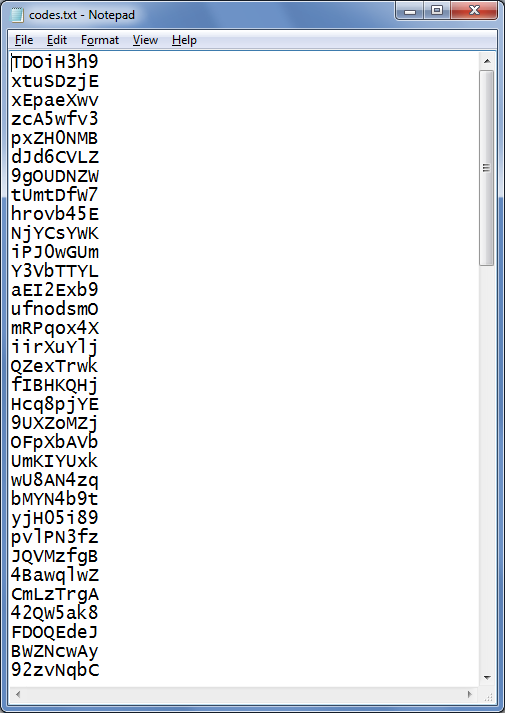
The tool also generates for you a list of all the codes it generated (in order) so you can easily track later on which ones have been used (and if they're valid, of course):


(click to enlarge)

 If you have any questions about this tool, you can contact me directly.
Reader -- Print Pages By Search Results


Direct purchase using PayPal ($40 only per license)!

This simple tool allows you to search a PDF file in the free Adobe Reader and then print just those pages where a match was found.


The search is currently case-sensitive and limited to a single word only.

Imagine you have a very large file, like this 180-pages Raspberry Pi Manual, but you're only interested in some pages from it, those that contain a certain term, such as "Install".
How do you separate those pages from the rest and focus only on them? By running this tool and printing only those pages, of course.

So after you've installed the script (instructions are included), you open the full file in Adobe Reader and click on the menu item it adds under the Extended panel:

Running the script from the Extended panel in Reader
  You then enter the search term you're interested in:

Entering the search term

The script searches all the pages of the file:

Search is in progress...
 And at the end of the process it opens up the Print dialog and populates the "Pages" field with just those page numbers that contain the search term:

The Print dialog at the end of the search. Notice the Pages list.
All you have to do now is press Print and you're done!

Of course, this tool will also work in Adobe Acrobat if installed there.

If you have any questions about this tool you can contact me directly.