Acrobat -- Spell Check Suite


Direct purchase using PayPal ($85 only per license)!


Try before you buy: Free demo version


This suite of tools adds full spell-checking capabilities to Acrobat.
You can now check and mark up regular text and bookmarks in addition to the standard check for form fields and comments which already exists in Acrobat.

Update IV (25-08-2016): New update for this tool! It can now handle ligatures symbols as well as end-of-line hyphenated words better than before.

Update III (18-06-2014): A new feature just added to this tool, allowing you to define "No Spell Check" zones, which the tool will ignore when it spell-checks the document.
Another improvement is the option to define whether or not to perform a case-sensitive spell-check. By default the check is case in-sensitive.

Update II: Now this script includes a batch process, which allows you to spell-check multiple files one after another (provided you have Acrobat Pro, of course).

Update I: A free demo version of this tool is now available here. It allows you to select a dictionary and then spell-check the first page of the currently active document.

The languages available for checking are:
  • Bulgarian
  • Catalan
  • Croatian
  • Czech
  • Danish
  • Dutch
  • English (Canada)
  • English (United Kingdom)
  • English (United States)
  • Estonian
  • Finnish
  • French (Canada)
  • French (France)
  • German (Germany)
  • German (Switzerland)
  • Greek
  • Hungarian
  • Italian
  • Latvian
  • Lithuanian
  • Norwegian Bokmål
  • Norwegian Nynorsk
  • Polish
  • Portuguese (Brazil)
  • Portuguese (Portugal)
  • Romanian
  • Russian
  • Slovak
  • Slovenian
  • Spanish
  • Swedish
  • Turkish

In Acrobat X or later the following languages are also available:
  • Arabic
  • Hebrew


The main menu of the suite looks like this:


The language dictionary selection looks like this:


Each of these dictionaries can be customized: Words can be added and removed from it, either using a simple input dialog or through a file (which allows adding or removing multiple words in one go).

When you run spell-check a document, the misspelled words are underlined and the suggestions for the correct spelling are added to the highlight:


Update: Added functionality to check just a part of the document. This is ideal if you have a single document consisting of multiple languages. You simply add "Spell Checking Zones" to your document, and only the words within those zones will be checked.

Here's how such a zone looks like (notice that only the misspelled words inside the zone were marked):


IMPORTANT NOTE:  This tool does NOT offer a way of fixing the found spelling mistakes, it just marks them on the page. To do so you would need to go back to the original file format and fix it there, or manually use the Edit Text command in Acrobat (not recommended, but possible).

If you have any questions regarding this tool, contact me directly.

Acrobat -- Move Pages From X To Y


Direct purchase using PayPal ($20 only per license)!

Fed up of moving PDF pages around in Adobe Acrobat by clicking them, holding down, dragging up or down the Pages list, hoping you manage to get it to scroll and then praying you don't drop them in the wrong spot? Well, no more!
Using this new tool I've developed you can easily and quickly move around one page, or a whole range of pages, from point X to point Y in your file.

When you run the script just enter which page(s) to move, and where to move them to, and you're done! It's as easy as that.

Here's how it looks like:

Moving one page down the file

Moving a range of pages up the file


If you have any questions regarding this tool, you can contact me directly.
Acrobat / Reader -- Enlarge Comment Lines


Direct purchase using PayPal ($50 only per license)!

Recently, the lines in the comments in Adobe Acrobat and Adobe (Acrobat) Reader became minuscule, making it very difficult to spot them on the page. With this tool you can make them all big again, with a single click.
The tool can be used in both applications and will edit the lines of the comment types:
  • Strikeout
  • Replace Text
  • Underline
  • Squiggly
It can be run on all the comments in the entire file, or on just the selected comments (it will ignore comments from other types), or on all the comments in the current page.

For example, let's say we have these 4 comments on the page. Their default appearance is quite small, as can be seen, so we click the script's button to enlarge them (can be seen under the Tools panel on the right):


And the results are much more visible:


If you have any questions regarding this tool, you can contact me directly.
Acrobat / Reader -- Print Every X Page


Direct purchase using PayPal ($30 only per license)!

Important: This script is only compatible with Acrobat/Reader version XI or higher!

This new tool allows you to easily print a subset of pages in a PDF file that you can't otherwise do, either in Adobe Acrobat or in Adobe (Acrobat) Reader.
Let's say you want to print every third page in a 800-page file. Instead of manually entering the page numbers into the Print dialog of the application (and then discovering it will only accept 100 characters!), you can use this tool to easily and quickly generate the pages list that you want to print.

So here we have a file with 805 pages and we want to print each 3rd page, starting from page 5 and ending with page 800, for example:

The file we want to print and the new button added by the script, in Adobe Acrobat
As you can see, the script added a new button to the Tools menu on the right.
If you use it in Reader it will be added under the Extended panel:

The same file and the script's button, as it appears in Adobe Reader
So we now click the button, and this dialog box appears:

The script's dialog window

In this box we can specify which X page to print or not to print (in this case we want to print every third page, so we enter "3"), and from which page number to start printing (page 5, in this case) and until which page number to print (page 800). The default values are every second page, printing from the first to the last pages.

After we click OK the Print dialog appears, with the correct page numbers filled in:

The Print dialog with the start of the Pages list, starting with 5

The end of the Pages list, ending with 800
All we have to do now is select the other printing options we want to use and click on Print, and we're done!

If we want to print every page except for the third pages then we can select the second option in the first drop-down menu in the dialog window:


The result is the following pages list:


If you have any questions regarding this tool, you can contact me directly.
Convert JavaScript Links To Real Links


Direct purchase using PayPal ($40 only per license, both tools included)!

Update (25/07/2016): Now also available, a similar tool that converts JavaScript links to a page (using the this.pageNum-property) to "real" go-to-page links that point to the same page number.
This tool allows you to select whether to convert links, fields or bookmarks. It looks like this:


Update: Now available are demo versions of both tools, which will process up to 3 files, 3 pages per file and 3 links per page. You can download them from here.

Using the tool you can convert links with a JavaScript action to launch a web-site (using the app.launchURL()-method) to "real" web-links that point to the same URL.
This can be handy because JavaScript code in Acrobat can not create this type of links, only links with JS-code.


These tools run independently of Acrobat and can process an entire folder of PDF files (and all sub-folders) in a single go.

If you have any questions regarding this tool, you can contact me directly.
Acrobat/Reader -- Anonymize Comments (FREE)


Now available for free!

This script will change the names of all authors of comments to a single value.
Handy for workflows in which multiple people comment on the same document, or if you just don't want others to know who commented on the file.
You can choose to either simply remove the author's name from all comments in the file, or to replace them with a new value, such as "anonymous".

Update: This script now includes a Batch Process (or Action) that allows you to run it on multiple files. Requires Acrobat Pro.

The basic version will also work in the free Reader, assuming Commenting is allowed.

Example:

Before:


The dialog box:


After:


If you have any questions regarding this tool, contact me directly, and if you find this tool useful and would like to donate, it's always appreciated!

Adobe Reader -- Import/Export PDF Form Data


Direct purchase using PayPal ($50 only per license)!

Update (03/12/2015): Now available, a free demo version of this tool that allows you to import or export up to three fields (in any of the available formats).

Update (19/11/2014): Added support for exporting the form data in the FDF and XFDF formats.

Some versions of Adobe Reader contain buttons labeled "Import Data" and "Export Data" for forms, but they are permanently grayed-out, unless the creator of the file applied a very special (and very expensive) right to it before distributing it.
If you wish to still gain access to this functionality (even if your version doesn't have these "ghost" buttons), but not lose an arm and a leg in the process, the solution is now available!

Using this tool you can import and export form data in Reader in multiple formats, so it can be saved as a plain-text file and then edited, archived, sent to others, imported into Excel or a database, etc.
All without the need to purchase Acrobat or to apply expensive rights...

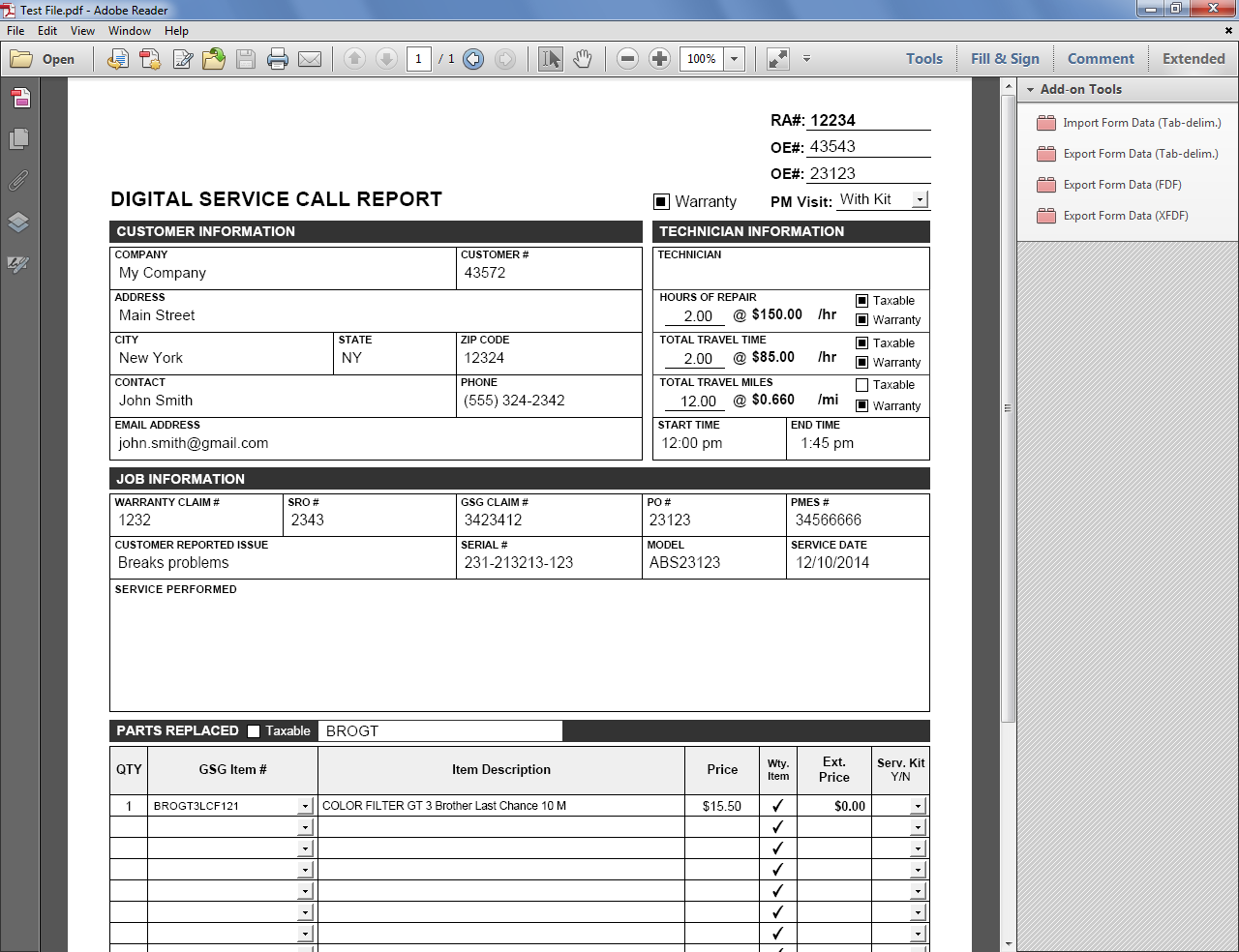
This tool adds four additional buttons to Reader: Import Form Data and Export Form Data.

(Click to enlarge)
 
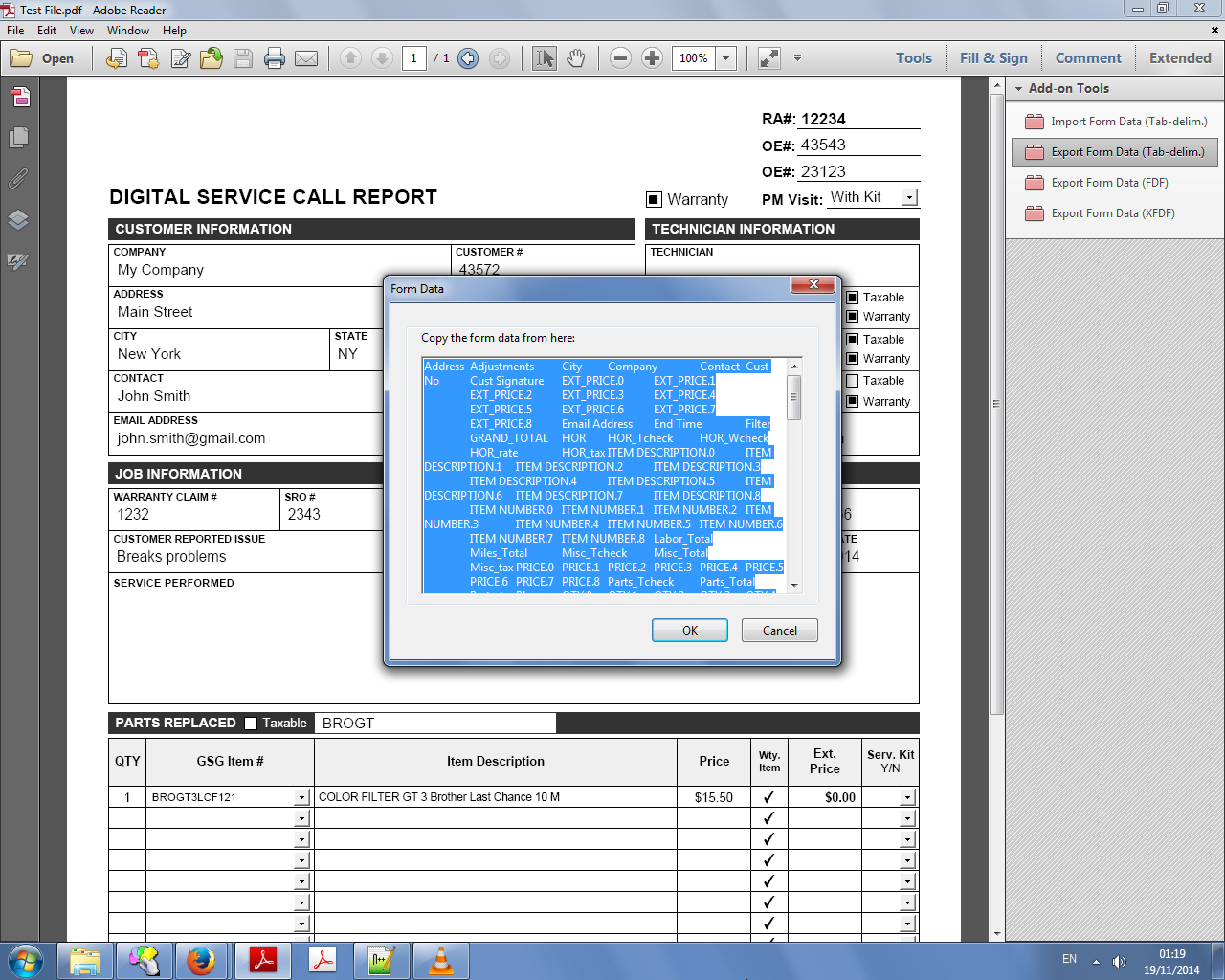
 If you click the "Export Form Data (Tab-delim.)" button a dialog window will be shown, containing text that can be copied and then pasted into a plain-text file. This is identical to exporting the form data in Acrobat as a text file.


The form data within the script's dialog window in Reader.


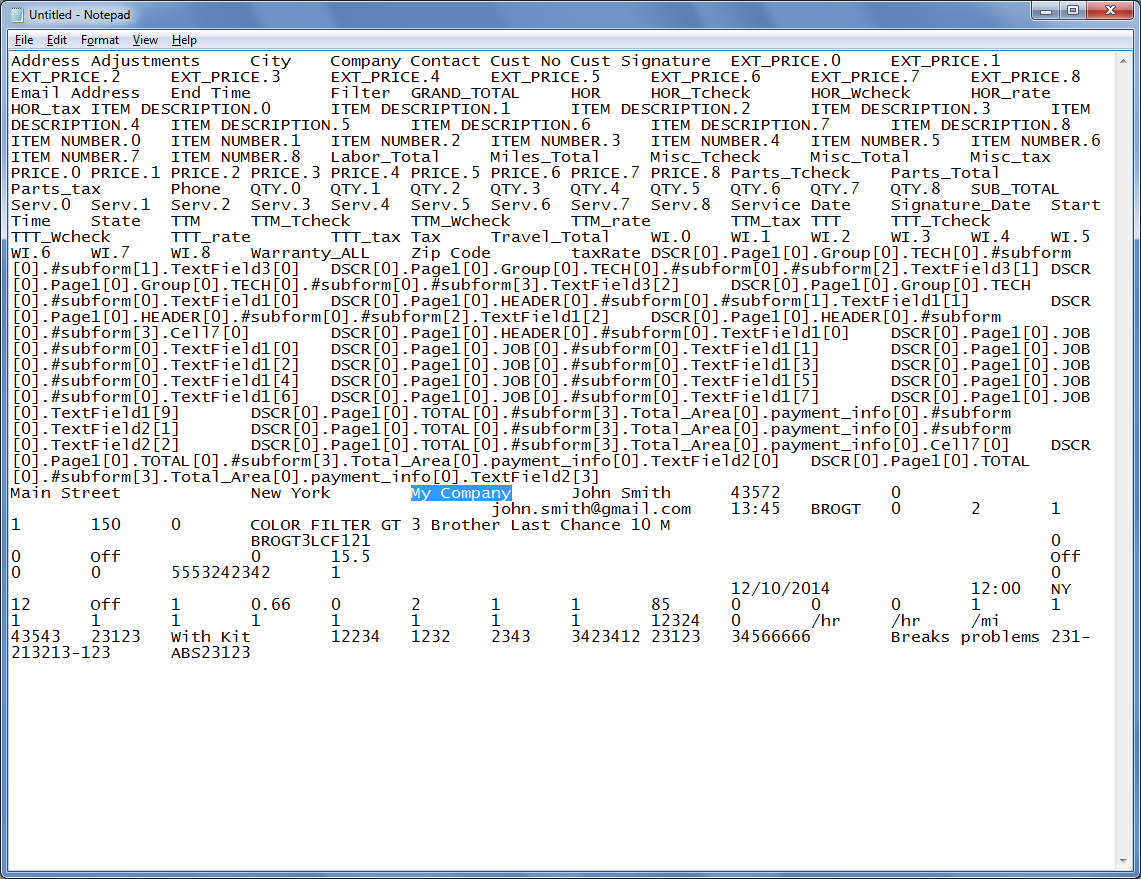
 If we paste the text into a text file...

The original tab-delimited form data, now in Notepad.


We can then save it, edit it, open it in Excel, etc.

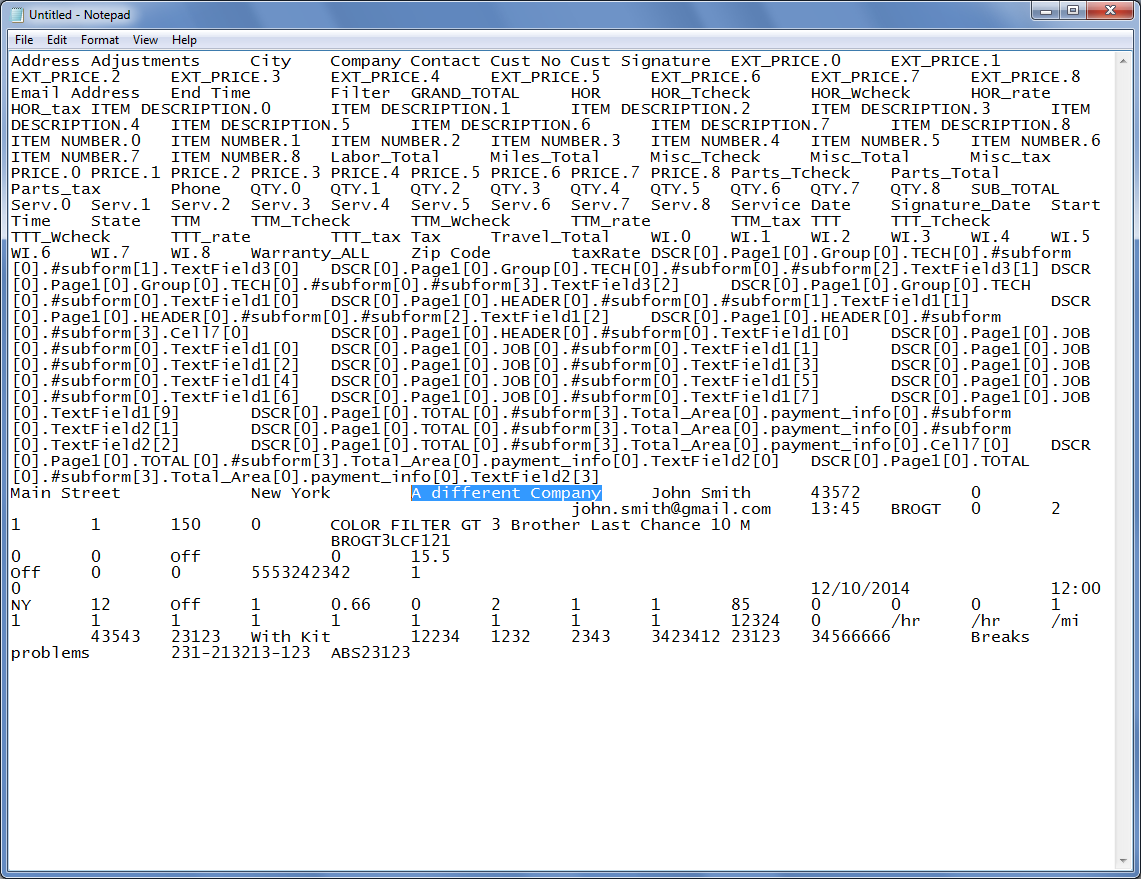
Editing the form data: Changing the name of the company, for example.


The same can be done using the FDF format:


Or the XFDF format:


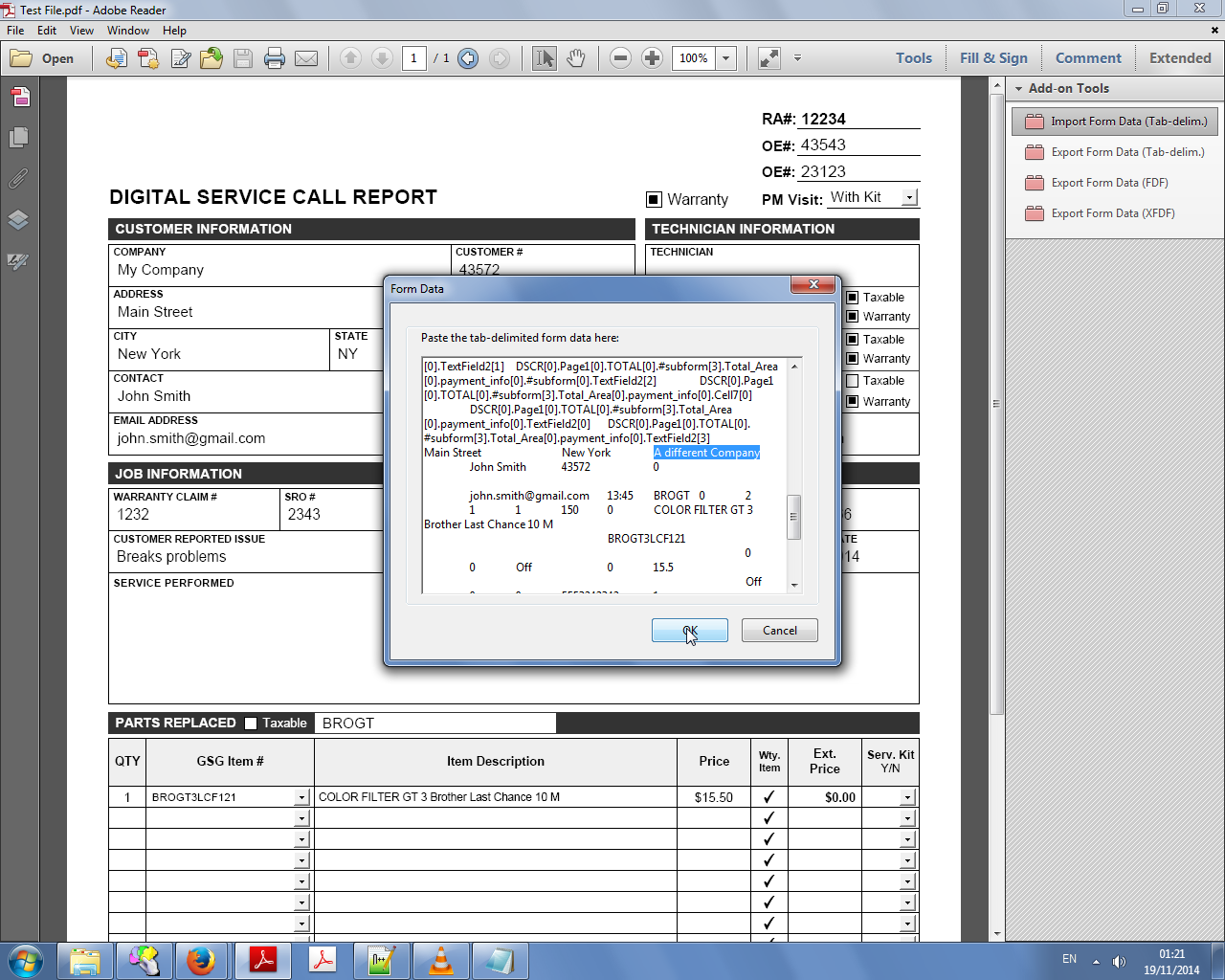
If you select "Import Form Data (Tab-delim.)" a blank window will open. You can then paste the data generated from the matching command of another file, or from Acrobat, into this window...

The data we previously edited in Notepad (highlighted)

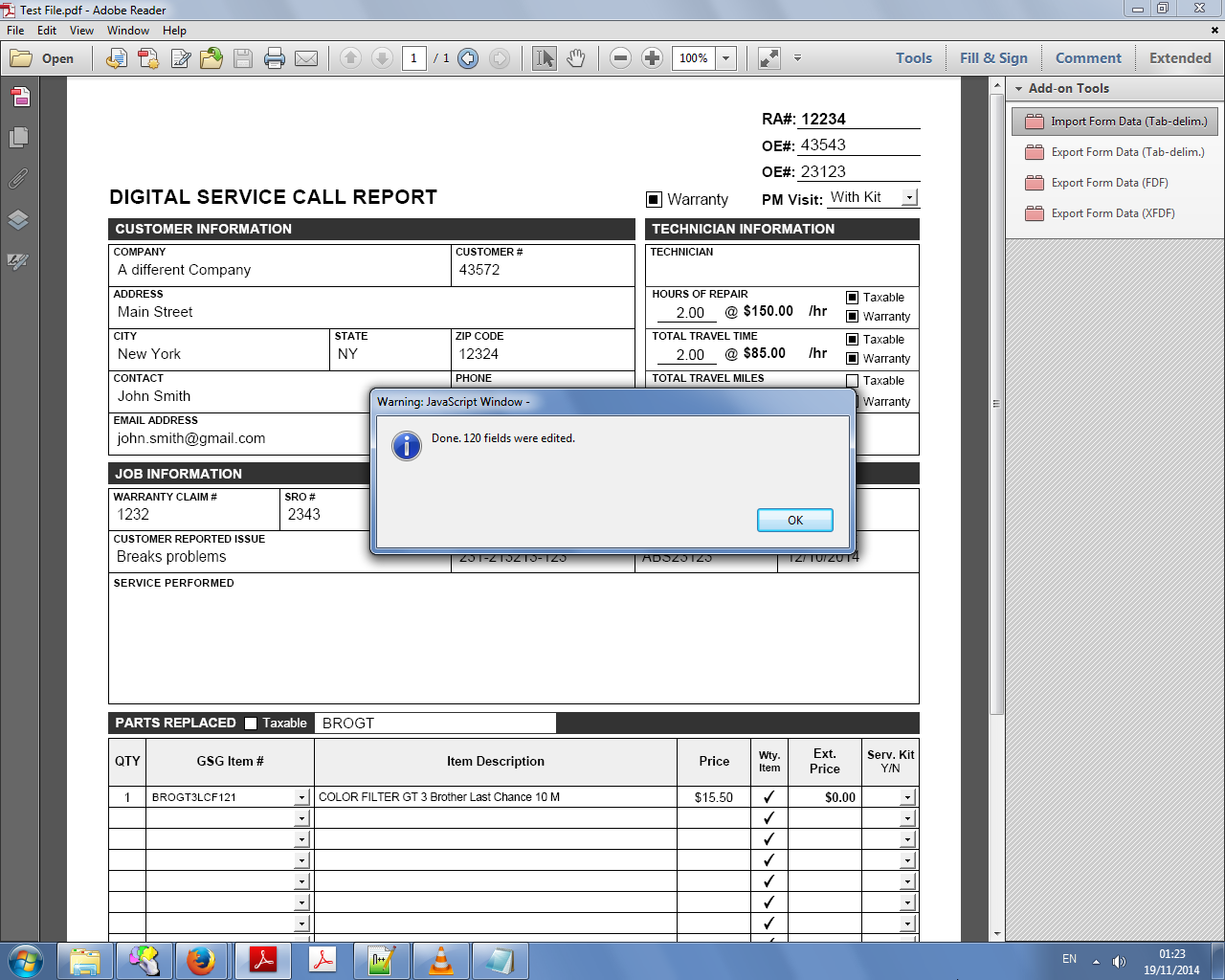
And when you press OK, the fields will automatically be populated with the new data:

The file after importing the data. The edited field can be see in the background.


Very easy and very straight-forward to use.

For more information about this tool, you can contact me directly.

Acrobat/Reader -- Convert Wingdings Characters to Check-Boxes or Radio-Buttons


Direct purchase using PayPal ($40 only per license)!

Update (03/04/2020): Now available is a companion tool that can convert sequences of underscores to text fields! You can find it here.

When creating their forms in Word, many people like to use the Wingdings characters for their form fields, such as radio-buttons and check-boxes. They are easier to move around and control, compared to graphic elements, because they are simply textual symbols.
The problem begins when you convert your file to PDF and want to convert them to PDF form fields. Acrobat does not always identify these symbols as form fields, and when it does, it doesn't always assign them the correct form type: Check-boxes can become text fields and radio-buttons can become check-boxes... Which means you then have to make a lot of manual adjustments to get them working correctly.

This issue can now be easily solved using this new tool I've developed which will identify Wingdings characters and convert them into the correct form fields in your PDF file.
The tool can identify 8 different kinds of check-boxes and 7 different kinds of radio-buttons, as can be seen in this list:

Types of recognized Wingdings (click to enlarge)

So let's say we have a simple form with Wingdings boxes that we want to convert to check-boxes:
The original file
After installing the script we can run it easily via the Tools panel, like so:

Accessing the script in Acrobat
The symbols are recognized and the fields generated. When done, the script reports how many fields were added to the file:


We can now see the generated fields in the file:


And interact with them, just like any other fields:


This tool can even be used in the free Adobe Reader (version XI or higher)!

Also, it will work with files from other applications, like Excel or InDesign, as long as they use the Wingdings font.

For more information about this tool, you can contact me directly.

Acrobat -- Deskew PDF Pages


Direct purchase using PayPal ($60 only per license)!

One of the most common problems with scanned pages is that they are are skewed by a couple degrees, which can be annoying and unpleasant to the viewer. It can also cause problems with processes such as Optical Character Recognition (OCR). Many times these processes attempt to manually correct those scans by rotating them backwards (deskewing them), but that's not always successful or even possible (for example with non-scanned documents). So how to solve this problem?

Well, with this new tool you can easily deskew some, or all, the pages of a PDF file, in either an automatic or a manual process.

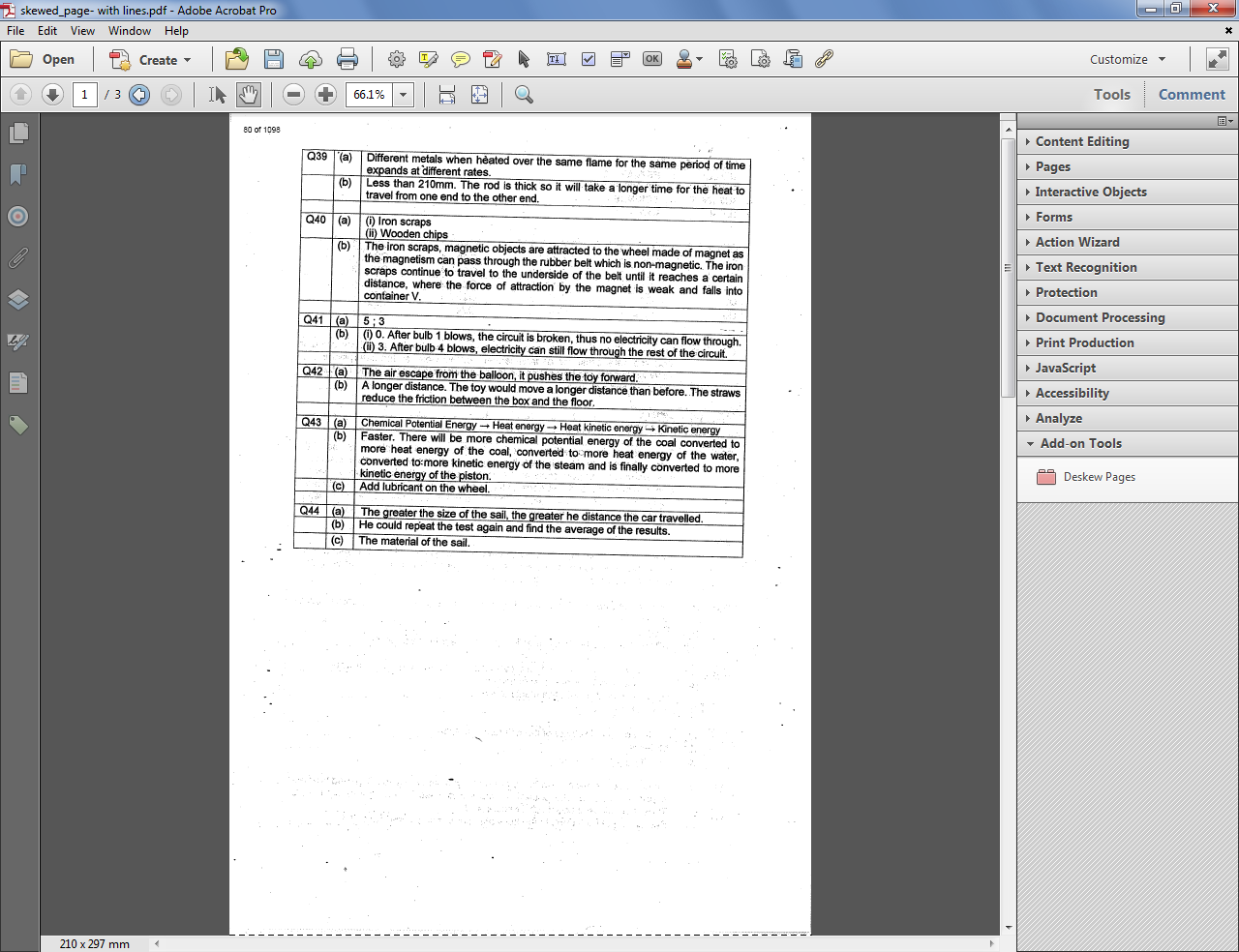
Let's have a look at an example: This is our original file with skewed pages that we want to rotate.
Notice the script is installed and available under Tools - Add-On Tools.

The original first page of the file (click to enlarge)

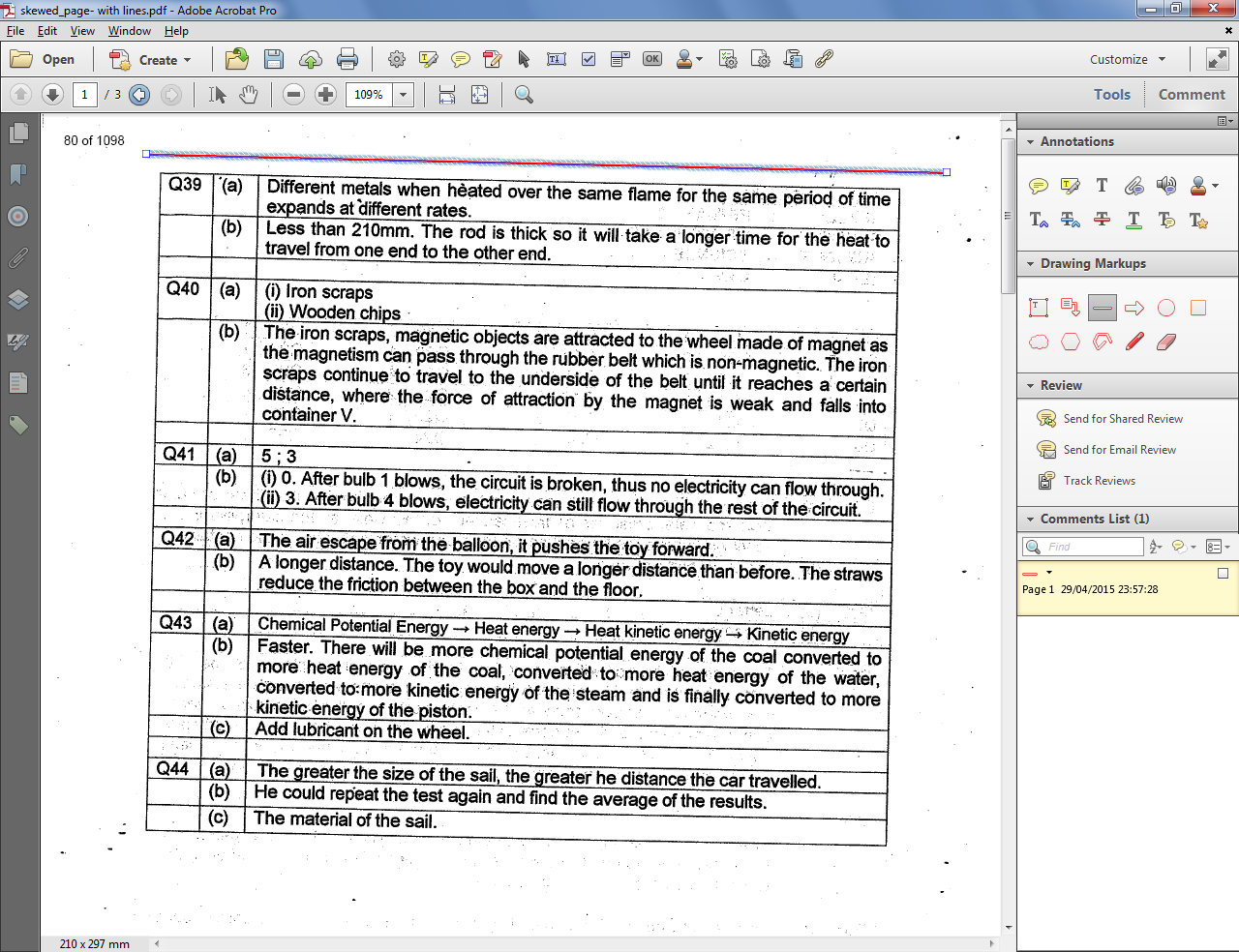
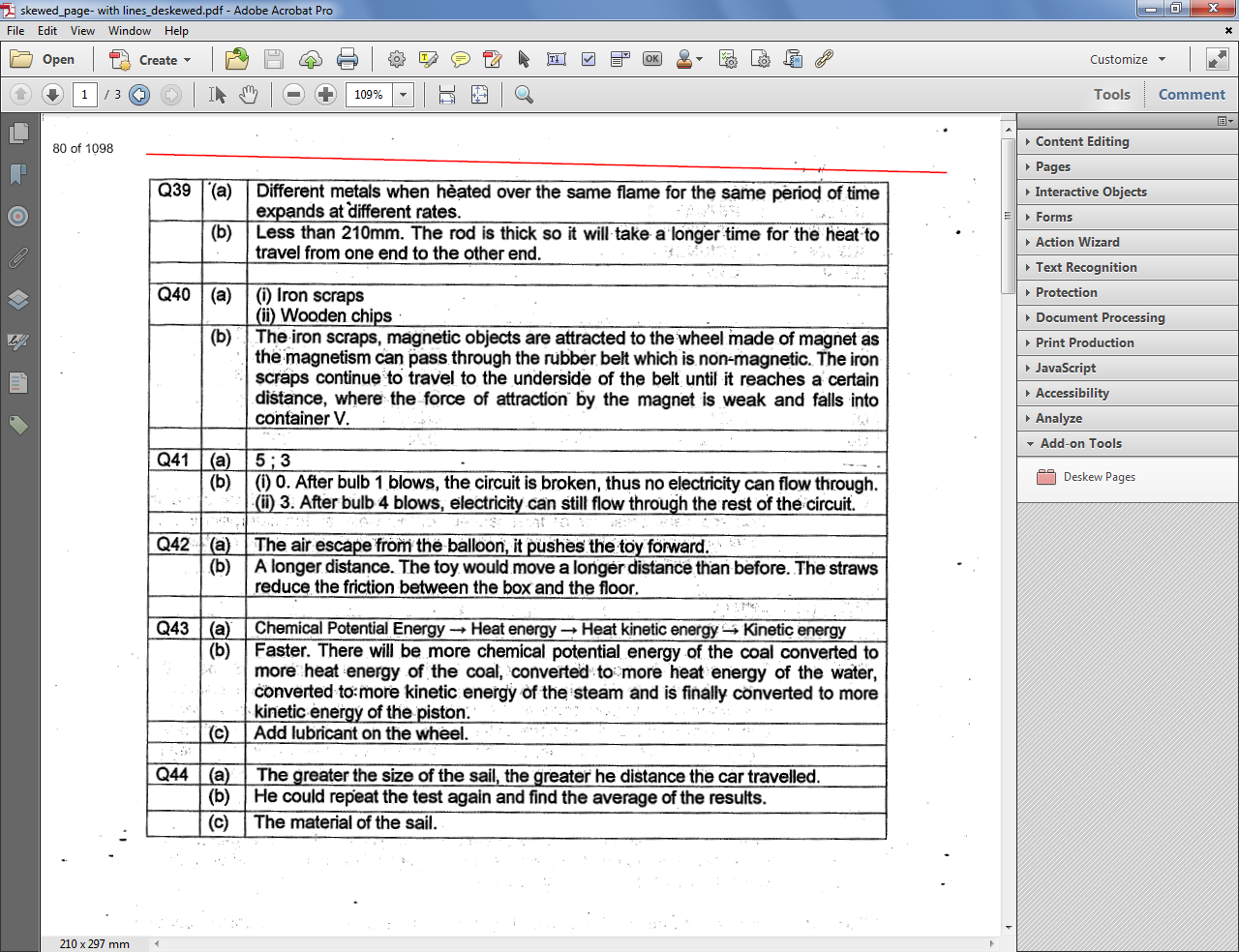
So how do we do it? We use the Line commenting tool to draw a line that represents the angle in which we want to rotate the page. So if there's a table on the page, for example, that line should be parallel to its top border:

The skewed page with the line we added to it
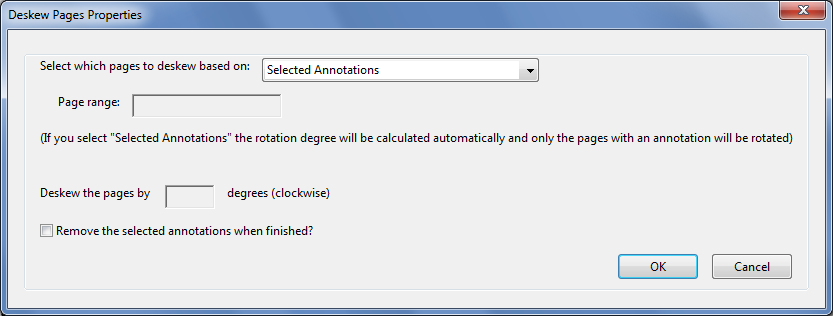
After adding the line we select it (multiple lines on multiple pages can be selected at once in the Comments List panel). We then run the script and in the Properties dialog select to use the "Selected Annotations" option.
If we want we can also select to remove these lines after the pages are processed.


The script's properties dialog
 And the result is...

First page after automatic deskewing
As you can see, the result is pretty good: The page is much straighter now.
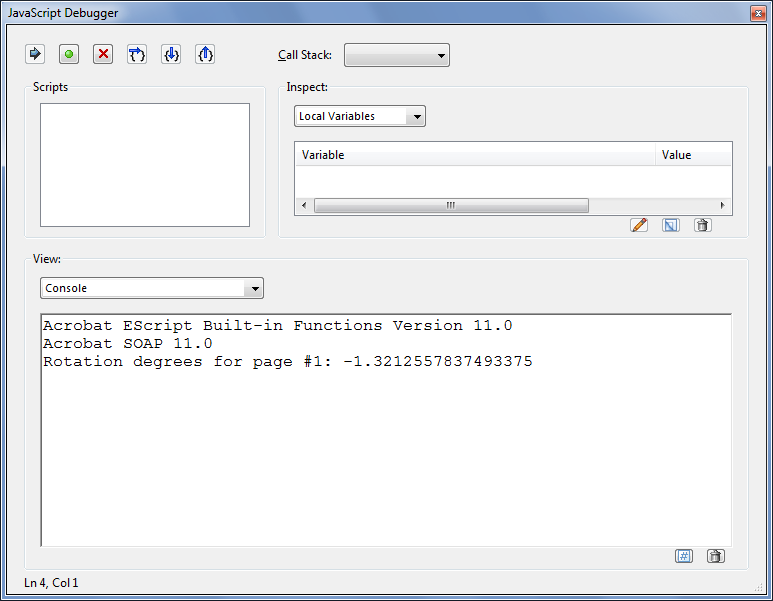
We can find out by how many degrees (clockwise) it was rotated by opening the JS Console (Ctrl+J):

The automatic rotation angle for page #1.
(Although the value is a fraction, in fact the rotation is in whole degrees only)

Now lets say we want to specify ourselves by how many degrees to rotate the page.
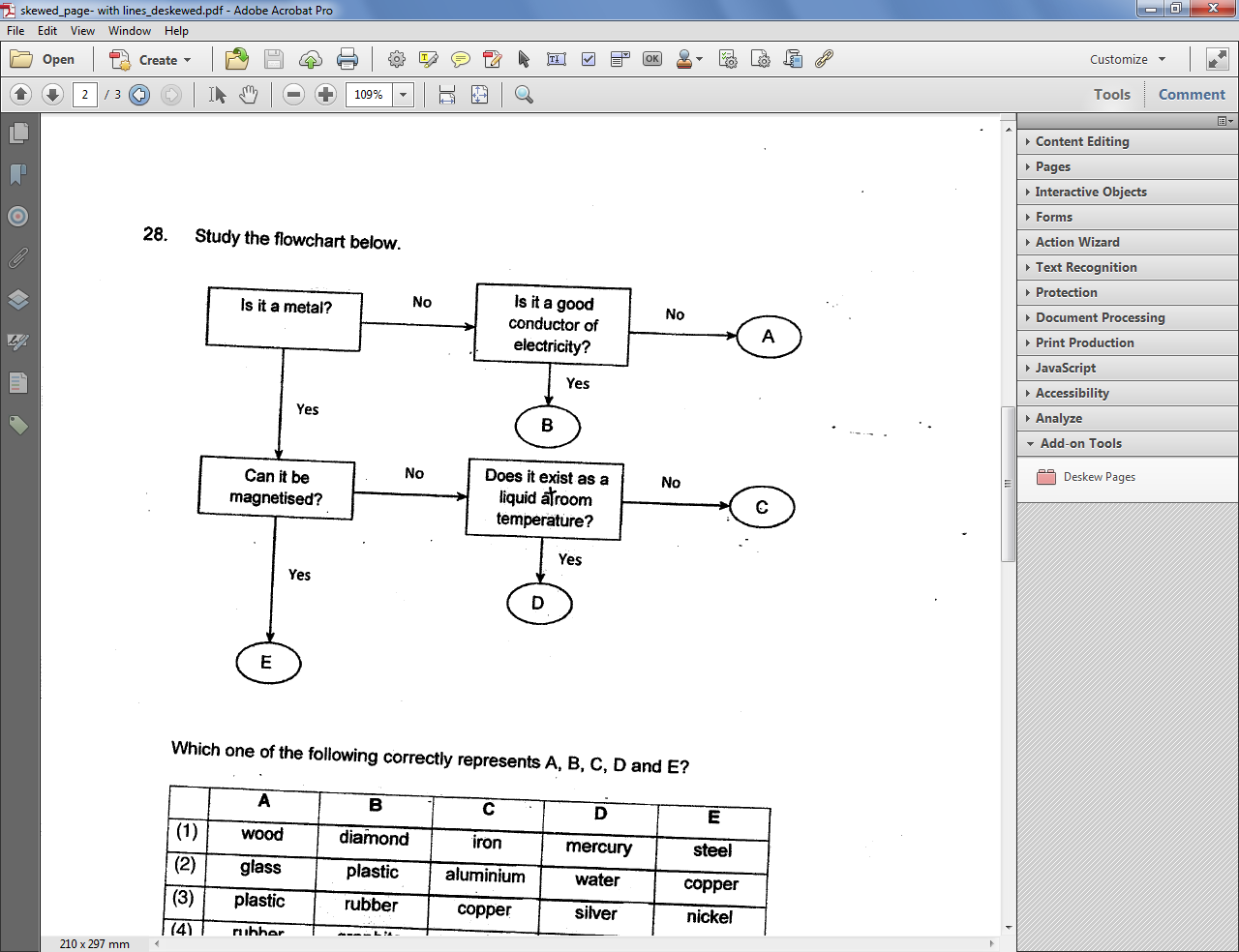
We take page #2 of the same document and run the script once more...


The original page #2
 This time in the Properties dialog we select to process the current page only and enter the degrees manually as "-2" (since we want to rotate it counter-clockwise):


And the results look pretty good once again:


We can now process the rest of the pages using the same setting, if we wish.

Important note: This process will NOT affect objects on the page such as form fields, annotations, links, etc. They will all remain in tact.

For more information about this tool, you can contact me directly.